
Create Your Own Simple Gold Texture
Preserved from the old Uncharted Design blog for nostalgia. This is old web-business advice, not current guidance.
The genius of Photoshop is that it helps you create something from (almost) nothing. We’re going to look at how modern day alchemy works and create some sparkly gold that can be used for any number of purposes on printed projects. This will be a short and sweet tutorial that requires only a beginner’s knowledge of Photoshop.
First let’s gather our assets. I used the first two cement textures I found on Google images (found here and here), but you can use any royalty free texture and try to experiment.
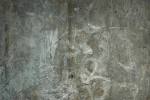
from jumpthewire
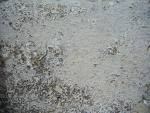
from ashlee7307-stock
Now we get to the fun part. Open up Photoshop and create a new document in CMYK mode if you are going to use this texture on printed materials, and RGB if you are using it for compuer based viewing. Whatever size fits both of your textures without enlarging them will be best for the canvas size.
Create a new layer and fill it with a dark red-orange base; I’m using #9c3120 for CMYK, and #cb9254 for RGB. This is where a lot of the golden color is pulled from. You can tweak it later you think your image is too paint-like and not enough foil.
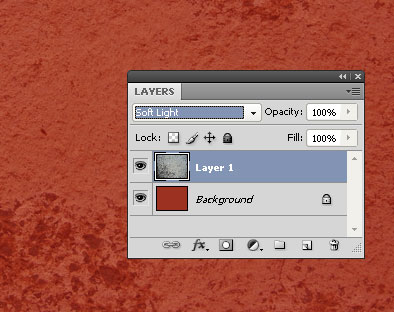
Paste the rocky looking as a layer on top of the red and set it to Soft Light. It will give the red a texture similar to Martian terrain. This texture will pull out some complimentary yellow-gold hues from the red base.
The real magic comes in the next step. Take the second texture and paste it on top of the other two, and set it to Linear Light. BAM! You look like a million bucks. If you are using different textures, use the one that looks the most like metal on the top. The liner light layer will hold the most of its original texture in the final product.
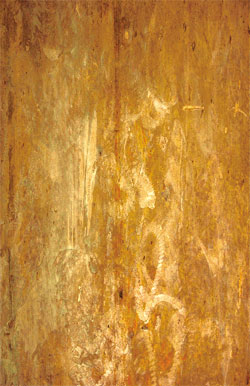
This texture is now usable as a gold foil on printed media (if you convert it to CYMK!), or as a texture for some bling on your next P-diddy poster.